 Lidar Extractor
 right on the Raven beta
New: Lidar Extractor now installs on the Raven scanner itself. At startup the Raven lets you choose between RayStudio, the original software, untouched, and Lidar Extractor, which tracks your position live with a drift-free SLAM (GLIM). You see the floor plan being built on the scanner's screen as you walk.
Download for Mac Download for Windows
Lidar Extractor app 0.9.29, which includes Lidar Extractor for the Raven. Install it, then follow the steps below.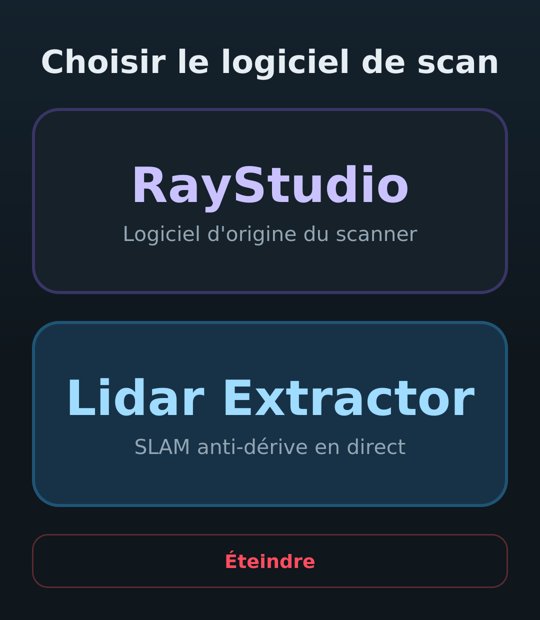
On the scanner's screen
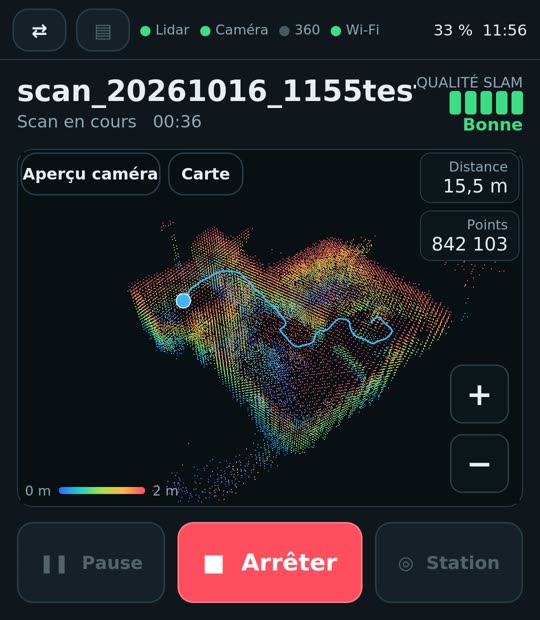
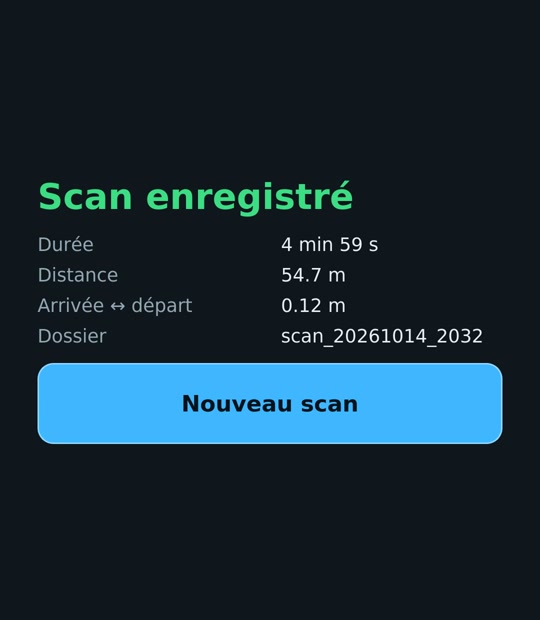
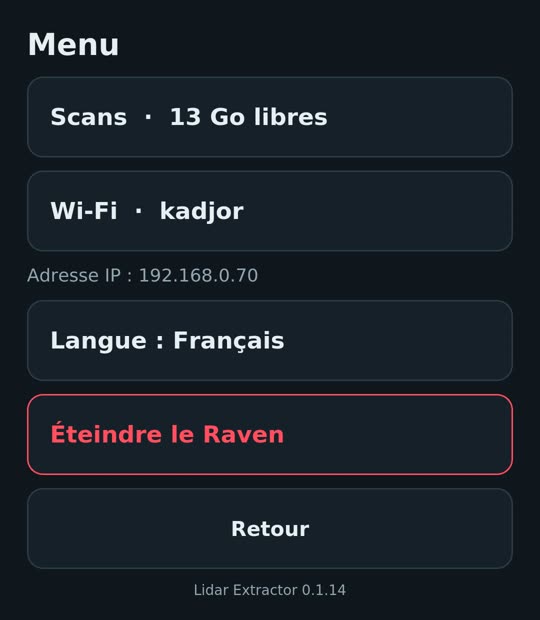
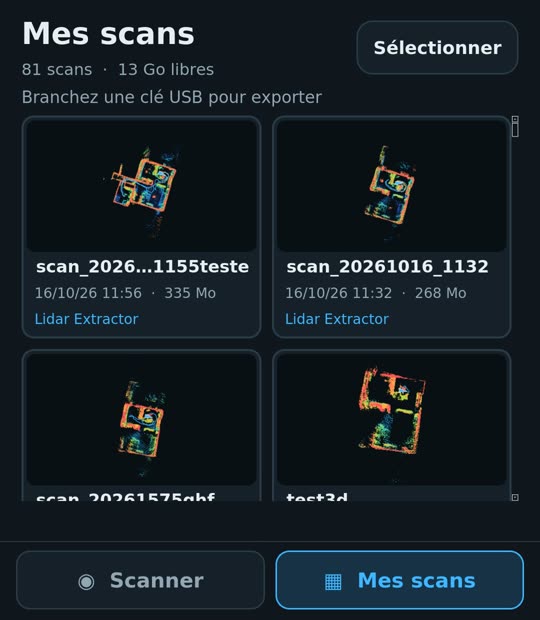
Tap Start, then type a scan name. The preparation step then checks the lidar, IMU, camera and 360 camera (X3, X4 or X5, detected automatically) while the scanner rests still. Start scanning only becomes active when everything is green. While scanning, Camera preview shows what the Raven's camera sees and 3D shows the cloud, which you rotate with a finger; Stop asks for confirmation. The My scans tab shows every scan as a thumbnail (RayStudio scans included): tap one for the top view, photo and 3D, with USB stick copy and delete. The ▤ menu gives access to Wi-Fi, the Raven's IP address, language and shutdown.
Install from the Lidar Extractor app
You need the Lidar Extractor app 0.9.27 or newer, on Mac or Windows, and the Raven switched on and on the same Wi-Fi as the computer. On Windows, the USB cable works too.
- Open the app, then Scanner setup at the top right.
- Scan the network, or type the Raven's IP address, then Connect.
- In the “Lidar Extractor on the Raven (beta)” card, click Install and confirm. A backup of the original startup is made automatically.
- Accept Restart: about a minute later the Raven shows the choice screen.
Update
When a new version of the app carries a newer version for the Raven, the card shows Update. One click, then Restart. The installed version is shown at the bottom of the choice screen and the menu.
Uninstall
In the same card, Uninstall. At the next startup the Raven goes straight to RayStudio, as before. Your scans are never touched.
LE_DESACTIVE at the root of a USB key, plug it into the Raven and power it on: it boots straight into RayStudio and the Lidar Extractor mode stays disabled until you reinstall it from the app. No computer or cable needed. Raven not seen over USB? Check the cable first: many USB-C cables only charge and carry no data. Use a data cable, for example the one supplied with the Raven.Supported scanners
| Model | Status |
|---|---|
| Raven | Supported, tested |
| Raven Max (two cameras, RTK) | Beta: not yet tested |
| Eagle, Hawk and others | Not supported: installation is refused |
Scanning tips
- Keep the scanner still for a few seconds during the preparation.
- When possible, finish at your starting point: the end ↔ start gap shown at the end then measures the drift. It is not mandatory.
- Walking back through an already scanned room helps the SLAM correct itself.
Raven rotated 90°: stairwells and multi-storey buildings
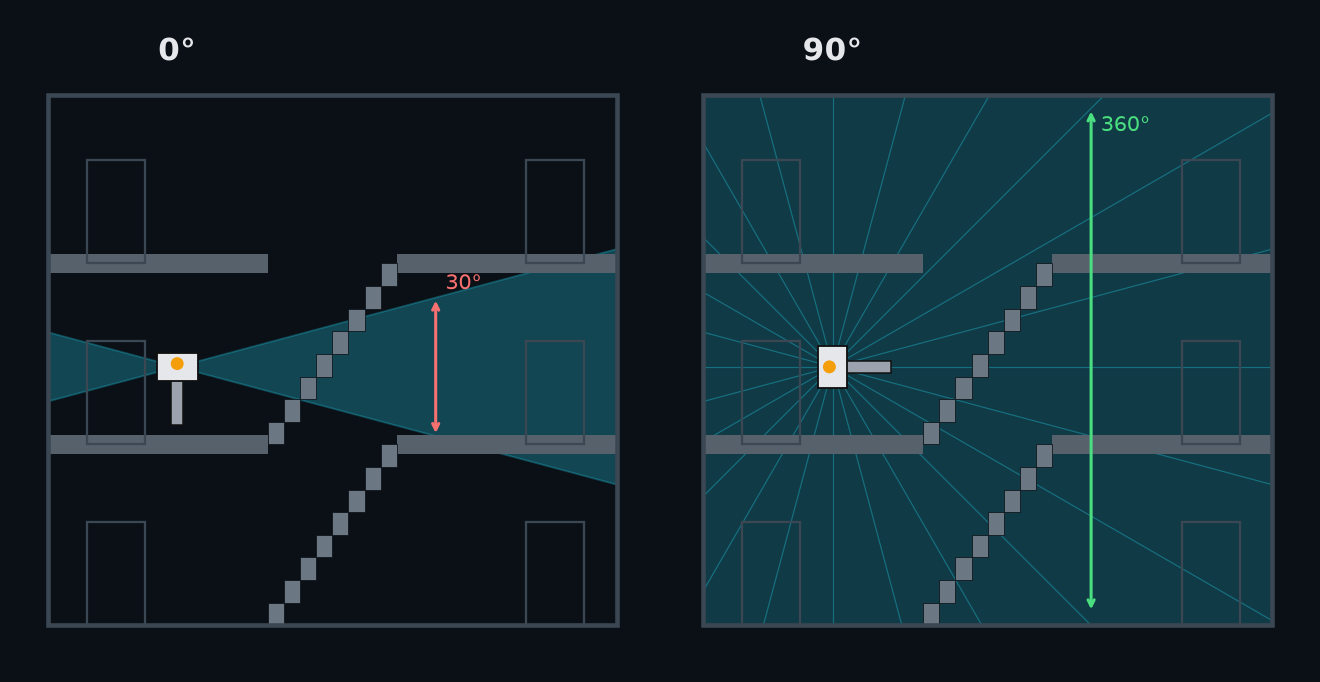
Held upright, the Raven sweeps 360° horizontally but only 30° vertically: in a stairwell or between two floors it sees a slice. Rotated 90°, its measuring plane becomes vertical: floor, ceiling and the steps above and below are seen at once, and the 30° limit moves sideways, which does not matter while you walk. A member of the Raven group surveyed a whole building this way, floor by floor, with Lidar Extractor on the Raven. SLAM and colour need no setting: the device knows its gravity.